AI test suites / Record and run Android workflows

Record Android tests. Let an AI agent run them.

Record a workflow on a connected Android phone or emulator, review the captured steps, and use a selected AI profile to rewrite them as editable actions and expected results. Then run a case or suite with an agent on an authorized device, review its live evidence, and add a separate judge if you want another check.

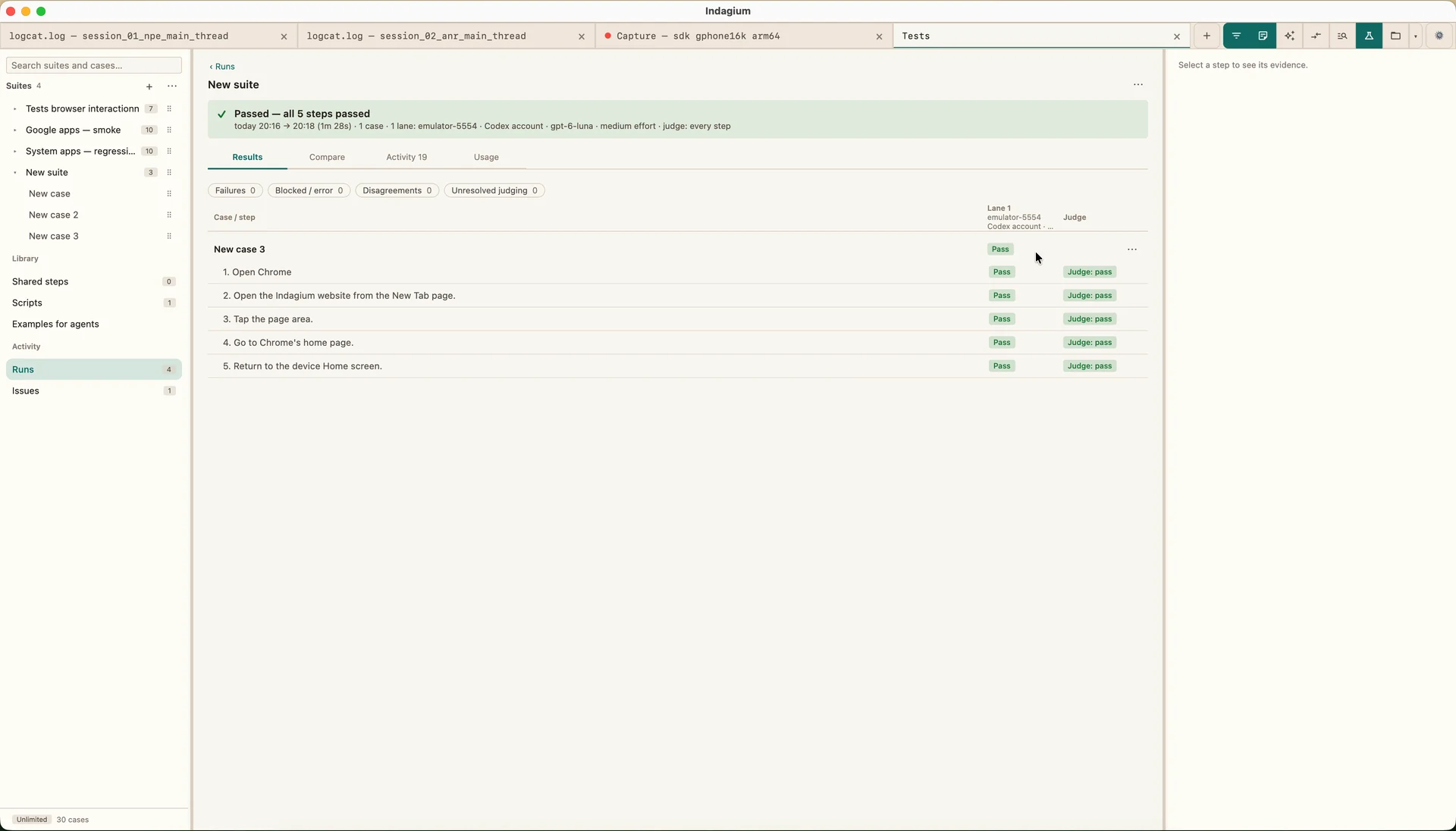
Indagium results matrix showing a five-step Android case passed with per-step agent and judge verdicts.
Completed run matrix: five passing steps, with agent and judge results for each.

01 / Record and review

Turn a device walkthrough into editable test steps.

Connect an authorized adb device or emulator and perform the workflow. Indagium records the inputs as a draft; you can inspect, edit, reorder, or remove steps before applying them to a case.

1-minute walkthrough: record a device workflow, review the draft, and rewrite it into readable actions and expected results. Download video.
  1. 01

    Perform the workflow

    Use the device, emulator window, or Indagium mirror. The recorder observes input and prepares ordered rows for review; it does not inject actions.

  2. 02

    Review or rewrite

    Edit the captured rows yourself or ask a selected AI profile to turn them into human-readable actions and expected results. Check each suggestion against the evidence.

  3. 03

    Apply the case steps

    Nothing is added to the case until you apply the reviewed steps. The actions and expected results remain editable in the case editor.

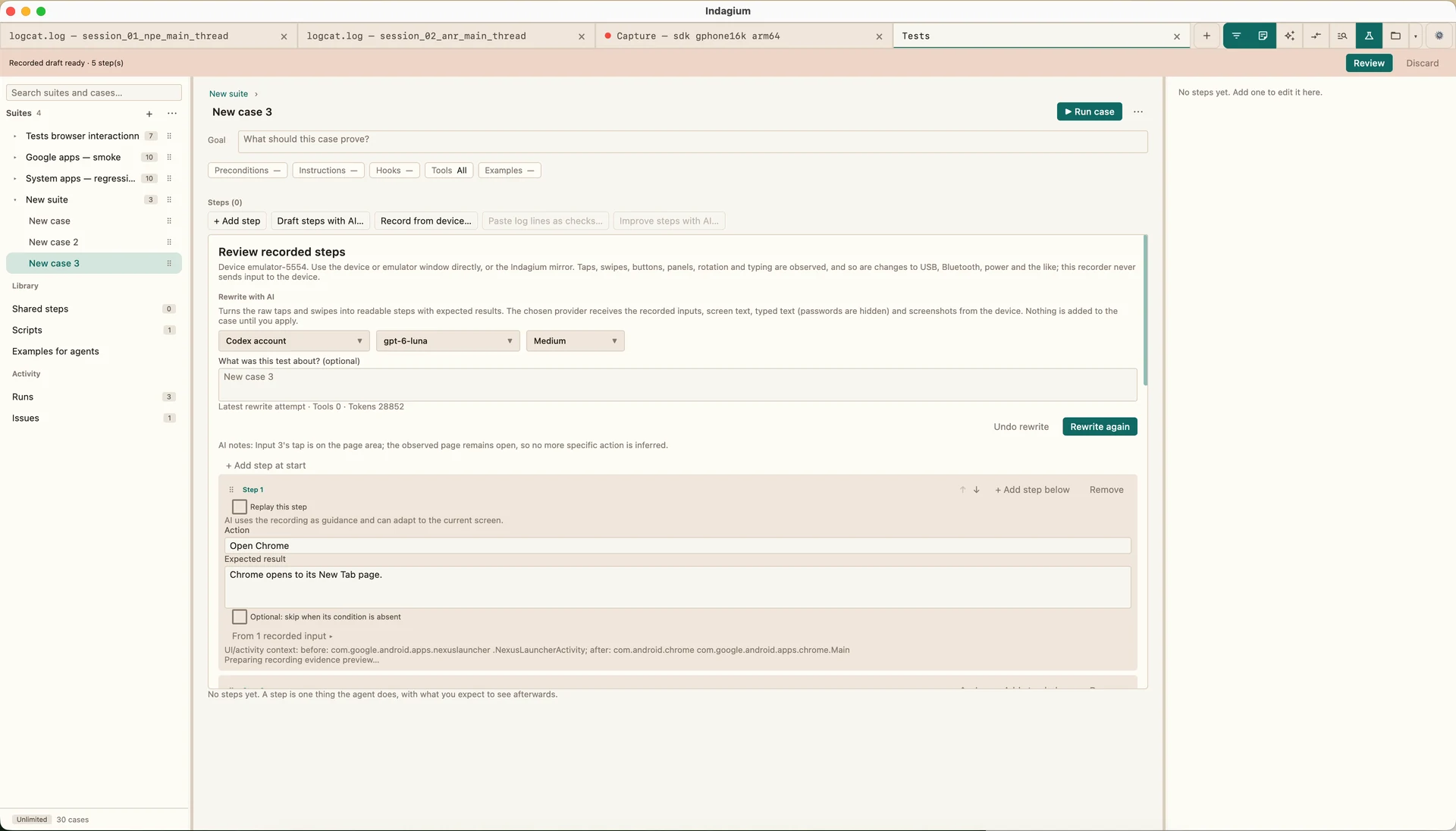
Reviewing recorded Android actions as editable test steps in Indagium.
Review the rewritten steps and expected results before applying them to a case.

The recording shows a Codex account for the rewrite. Use any AI profile configured in Indagium; the provider and model are selected in the app.

02 / Run and inspect

Run the case on Android. Keep the evidence close.

Choose a case or suite, an agent profile, and a connected authorized device. The run view follows progress and evidence; a separate judge is optional and can check every step or only failed steps.

  1. 01

    Choose where and how

    Select the AI agent profile and adb device or emulator. Configure recording and evidence retention, then choose whether to use a separate judge.

  2. 02

    Watch live progress

    See the current step, latest screenshot, recent logcat, and agent activity as the lane runs. Runs can also be paused or stopped.

  3. 03

    Review results and evidence

    Inspect each step's outcome and the evidence retained for that run. Failed results can be turned into issues kept locally or filed through a configured tracker.

This recording uses a Codex agent and a separate judge. Configure agent and judge profiles independently; a judge is optional.

1-minute 42-second walkthrough: an agent runs a five-step emulator case while Indagium shows live evidence and judge results. Download video.

Configure the workflow

Your device, provider, and verification choices.

Start with a case, then choose how its steps are authored, run, checked, and retained. The map below links to the full AI test suite guide.

SUITE DESIGN

Describe the app and reusable setup

Group cases under a suite with a target package, agent instructions, goals, and preconditions. Reuse shared step sequences in cases or setup and teardown hooks; named suite values are included as plain context for the agent. Suite guide.

AUTHORING

Choose how to build each case

Add steps by hand, draft them with AI, record a device workflow, paste log lines as checks, improve saved steps, or rewrite a retained recording. Review and edit previews before applying them. Authoring guide.

STEP TYPES

Mix AI and direct device work

Steps can be performed by an AI agent, a tester, a script, or eligible recorded-input replay. Optional steps run only when their condition is present. Set step timeouts and retries, then stop, continue, create a draft issue, or pause after a failure. Step types.

CHECKS

Combine direct checks and AI judgment

Check for matching or absent logs, script results, and device state. Screen judge and Ask the judge checks use AI and need a configured judge. Add golden screenshots or reference logs as examples for a step. Checks and examples.

RUN CONTROLS

Set up lanes and repeat behavior

Choose agent profiles, model and reasoning effort, or an external MCP lane. Up to four distinct devices can run in parallel; lanes sharing a device run in sequence. Repeat cases 1, 3, or 5 times, set case and step retries plus tool-call budgets, and choose no judge, failed-step or every-step judging with inline, after-case, or background timing. Run guide.

EVIDENCE AND REPORTS

Follow progress and compare outcomes

Inspect live screenshots, logcat, and agent activity. Choose capture tabs and saved evidence. Reports include a case-and-step matrix, attempts, agent/judge disagreements, and flaky outcomes; compare runs, rerun failed cases or through a step, or export JSON, Markdown, and evidence ZIPs. Reports.

SCRIPTS AND ISSUES

Add custom tools and follow-up

Expose typed-parameter scripts from the host shell or adb shell with ask-first, automatic, or setup/teardown-only permissions. Keep issues locally, add them to Notes, copy Markdown, or file through a configured tracker MCP server. Scripts · Issues.

STORAGE AND MCP

Keep libraries and evidence where you choose

Configure separate suite, run, and issue folders. The Free edition allows one suite with five cases; additional entries are locked, not deleted. MCP clients can author, run, compare, export reports, and handle issue evidence, with approval required for gated actions. Limits · MCP guide.
Questions

Android AI tests, answered.

Can I choose AI steps or replay recorded input?

Yes. A recording starts as a reviewable draft. You can ask AI to turn it into editable actions and expected results that use the current screen and recording as guidance, or apply the recorded input as replay steps. A case can contain either kind.

Do I need a separate judge?

No. Choose No judge, failed steps only, or every step when configuring a run. The judge has its own AI profile when enabled.

Where are suites and run data stored?

Suites, saved runs, and issues are kept in their configured folders on your computer. You can change those folders in Settings → General.

What test data is sent to AI providers?

Suites, saved runs, and issues stay in their configured folders. When you ask an AI profile to rewrite a recording or run a test, Indagium sends the relevant prompts and evidence to the provider you selected. A recording rewrite can include captured inputs, screen readings, text entered, screenshots, and requested video frames; recognized password content is masked or withheld. AI use and judging are optional.

Continue exploring

From a device workflow to log evidence.