Connect by USB or Wi-Fi
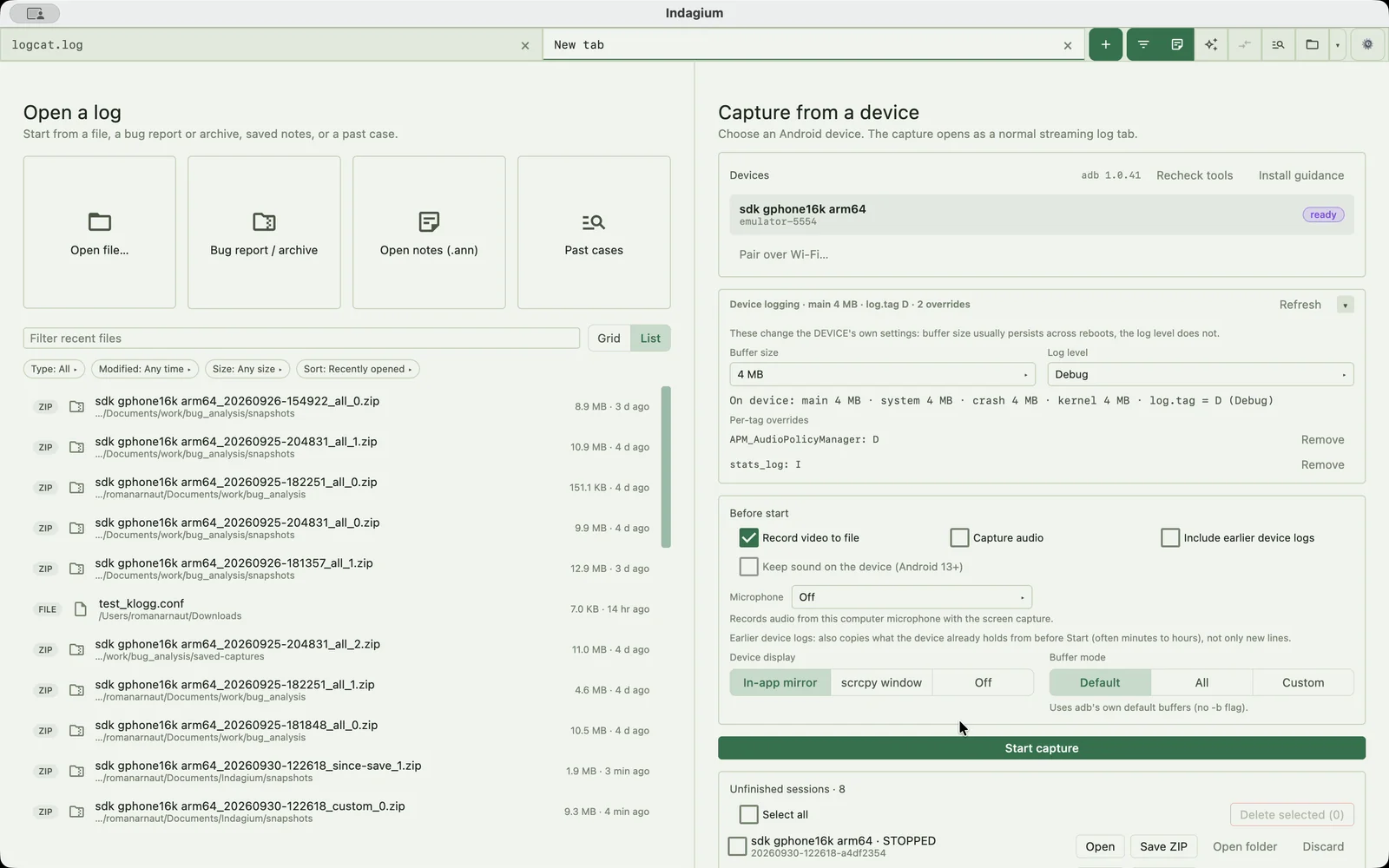
Use an authorized USB debugging connection, or pair on Android 11+ with Wireless debugging by QR code or pairing code. Indagium uses installed Android platform-tools (adb).
Android device capture / USB and wireless logcat
Indagium records live Android logcat and the device screen in one session, so you can reproduce an issue, mark what happened, and review the log and video together. Connect over USB or Android wireless debugging, then save a portable ZIP snapshot for a synchronized investigation.
Live Android logcat capture / 32-second walkthrough
See a connected device stream logcat beside its live screen, mark an issue with a screenshot, and save a snapshot while capture continues.
THE WRITTEN WALKTHROUGH
From connection to evidence
Use an authorized USB debugging connection, or pair on Android 11+ with Wireless debugging by QR code or pairing code. Indagium uses installed Android platform-tools (adb).
Log streaming starts with the session; screen video recording is on by default. The live device mirror is embedded in the capture workspace. A host scrcpy installation is only needed if you choose its separate external mirror window.
Use Indagium's normal log viewer, filters, search, highlighters, and Notes while new rows arrive. Mark issue records a log time window and can take a screenshot for context.
Open the saved ZIP in Indagium. The archive descriptor links the included log and video and stores a synchronization anchor, so log rows and video seek together without a manual attachment step.
Choose your connection
Both connection methods use adb from Android platform-tools. Install platform-tools on the computer and select its adb executable in Capture Settings if it is not already on PATH.
USB: enable Developer options and USB debugging on the Android device, connect its cable, and accept the computer's authorization prompt. The New capture launcher shows whether adb sees the device and whether it is authorized.
Wireless: on Android 11 or later, enable Wireless debugging in Developer options while the computer and phone are on a reachable network. In Indagium choose the pairing option shown for the device and scan the QR code or enter the pairing code from Android's Wireless debugging screen. If network discovery is blocked, enter the address and code manually.
The host scrcpy application is optional. Indagium's default embedded mirror and video recorder use its bundled device-side server over adb; install host scrcpy only to open the distinct external mirror window.
Snapshots and saved sessions
Save snapshot exports a point-in-time selection while the device recorder keeps running. Choose all available history, a recent time range, rows since the last successful snapshot, or the interval between the first and last selected capture rows. Include video when the recording covers that range; the export reports actual video coverage when it starts later or ends before the logs.
A ZIP is a portable copy for sharing or reopening. By default it includes the captured log and video, plus the archive descriptor that records device/session details and one log-to-video synchronization anchor. Screenshots, marker details, and note content can be included where available and selected.
Stop ends live log and video recording, drains the log stream, and finalizes the capture in its session folder. Use Save ZIP afterward to export the stopped session as a portable archive. The retained session folder is working/recovery data; it is distinct from the flat assets in an exported ZIP.
Open the capture ZIP in Indagium. It verifies the descriptor and included assets, loads the log, and links the available video automatically. Select a log row to seek video, or move the video to inspect the corresponding log time.
If Indagium closes before Stop, the recorder cannot resume the device stream after restart. The New capture launcher lists the retained interrupted session so you can open its available log/video data and save what was captured.
Settings and compatibility
Recording choices such as video, buffers, audio, microphone, and video limits are saved as you change settings and are used when the next capture starts. They do not reconfigure an active recording. While the mirror is running, its display interaction and live playback controls remain available separately.
By default, logcat streaming begins when you start the capture; earlier device buffer contents are excluded. Turn on the option to include earlier buffered logs if you need events from before reproduction began. Video recording is on by default. Audio recording is off by default.
Capture audio requires Android 11+ and records supported device playback; apps can block it. While it is captured, the phone speaker is muted by default. On Android 13+, enable Keep sound on the device to request playback through the phone speaker too; older devices cannot honor that option. Audio in an exported capture is retained in MKV. The embedded mirror's live playback on the computer is a separate speaker toggle and starts muted. A computer microphone is another separate input, off by default.
Indagium estimates the initial relation between log and video time and can apply a manual millisecond offset. The ZIP stores one synchronization anchor. When video starts late, reconnects, or does not cover the whole selected log range, Indagium reports that coverage rather than claiming full overlap.
Capture settings include a session size limit and a minimum free-space reserve. Choose separate folders for retained sessions, snapshots, and saved ZIP archives in Settings. On older Linux systems without the required glibc/native media support, video recording and the in-app mirror are unavailable; log capture continues, with an optional host scrcpy window when installed.
Questions
Yes. Start a device capture to stream logcat and record the screen in the same session. Screen video is on by default and can be turned off in Capture Settings.
Yes. Connect an authorized USB-debugging device, or use Android 11+ Wireless debugging and pair by QR code or pairing code. Both routes require Android platform-tools with adb installed on the computer.
Usually no. The default embedded mirror and screen recording use Indagium's bundled device-side scrcpy server. Install host scrcpy only if you want the separate external mirror window.
No. It exports a point-in-time ZIP while log and video recording continue. Stop ends and finalizes the session; Save ZIP exports the retained session afterward.
Yes. The archive descriptor stores a synchronization anchor and references the included log and video. Indagium verifies those files and automatically links them when the capture ZIP is opened.
Keep investigating