Logcat text
Open logcat .txt or .log files in threadtime, time, brief, or bare format; unrecognised lines are tagged RAW.
Comparison / The investigation surface
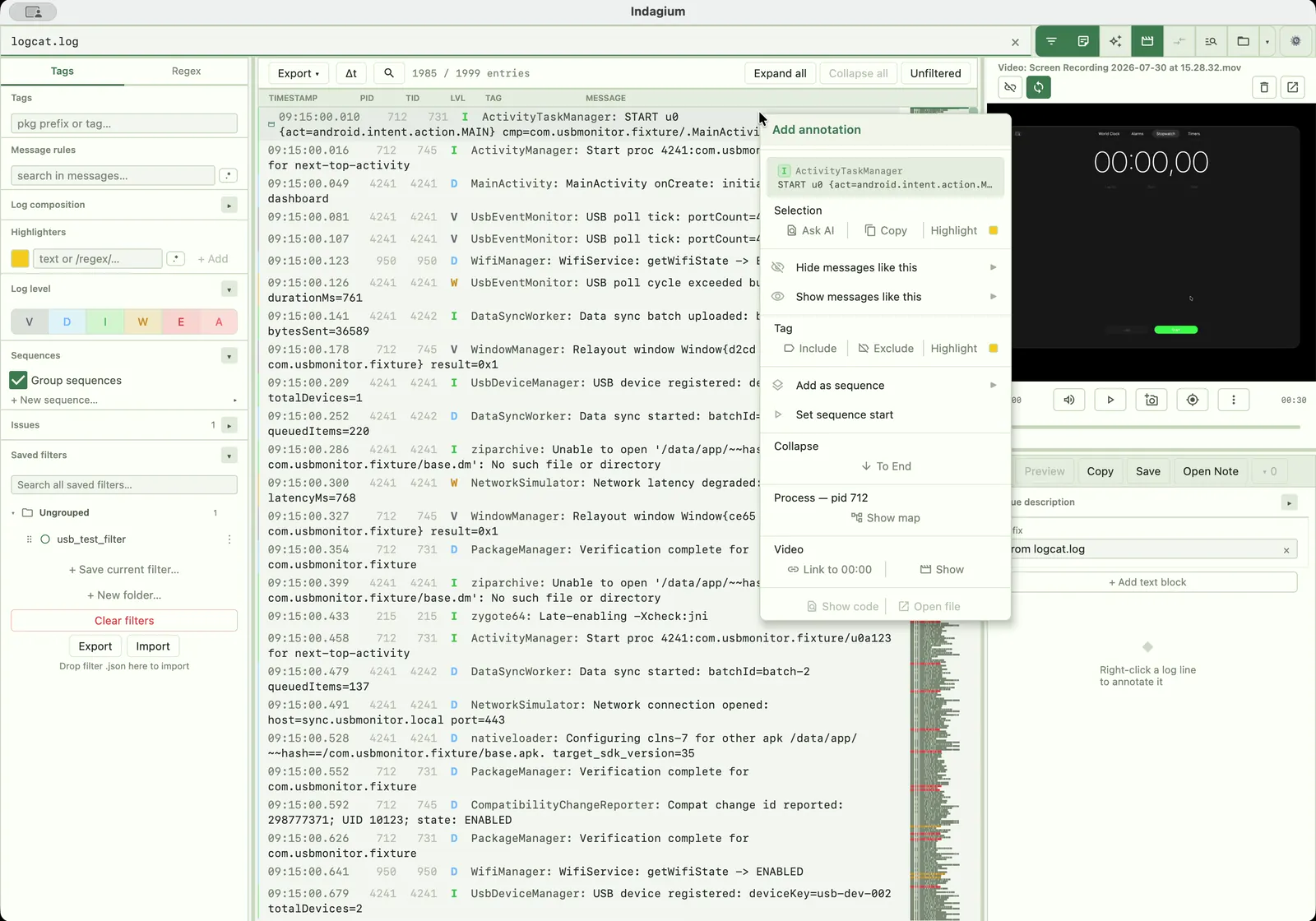
Generic text or log viewing is useful for opening a file. Indagium adds the connected tools of a full log analyzer — needed to ask what happened, preserve the trail, and hand the evidence to someone else, entirely offline.
A grounded comparison
This workflow describes the difference between generic text or log viewing and the capabilities documented for Indagium, without Android Studio.
| Investigation need | Generic text or log viewing | Indagium workspace |
|---|---|---|
| Find the signal | Read or search a text stream. | Combine level, tag, package, message, PID, and TID rules, with substring or regex matching. |
| See the pattern | Scroll through repeated lines. | Fold recurring regions into colored, nestable sequences and use thread maps and time deltas. |
| Compare context | Open another file or window. | Use multiple tabs and compare two tabs side by side, each with its own filter. |
| Record a live reproduction | Capture a log and screen recording separately. | Stream Android logcat and record screen video together over USB or Android 11+ wireless debugging, then export a ZIP by default or an Indagium Compact (.ind) archive whose available log and video reopen synchronized in Indagium. |
| Connect an existing recording | Keep a recording or source reference elsewhere. | Manually attach an existing video to a log line, or open a device-capture ZIP or Compact archive whose available video is linked automatically; view the source method when configured. |
| Explain the finding | Copy a snippet into a message. | Annotate selections and export logs or notes as a record others can follow. |
What you can open
The workflow above applies whether you start from a raw logcat file, an adb bugreport, or a DLT capture — the filters, sequences, and exports don't change.
Open logcat .txt or .log files in threadtime, time, brief, or bare format; unrecognised lines are tagged RAW.
Open a bugreport .zip or .7z archive directly and pick what to load, instead of extracting it to a folder first.
Open .dlt binary captures and raw DLT streams; non-verbose payloads are kept as readable text/hex.
Open DLT Viewer text and CSV exports the same way as a logcat file.
Why offline matters
Every step in this workflow — opening, filtering, folding, comparing, and exporting — runs locally in the desktop app; nothing is uploaded unless you turn on the optional AI assistant or MCP connection yourself.
A connected next step
Questions
Common questions about how Indagium's investigation workspace differs from a plain text or log viewer.
A viewer displays a file. Indagium's workspace keeps filters, folded sequences, comparisons, source lookup, and notes attached to that file so the trail survives past the first read.
No — the whole workflow runs in Indagium, without Android Studio, on macOS, Windows, or Linux.
Yes. Open two tabs and compare them side by side, each with its own filter or mirroring the other's.
Yes. The same filter, sequence, and export tools apply to DLT (.dlt) captures, raw DLT streams, and DLT Viewer exports alongside logcat.
Yes, Indagium is free to use; it's source-available, not open source.