Guide / Logcat without Android Studio

View a logcat file without Android Studio.

Android Studio's Logcat panel only shows lines while a device or emulator stays connected to that session — it isn't built to open a logcat.txt file someone else already captured and sent you. This guide covers the fast path: install platform-tools, capture logcat to a file with adb, then open and filter that file in Indagium, a desktop logcat viewer that needs no Studio window, no project, and no live device connection.

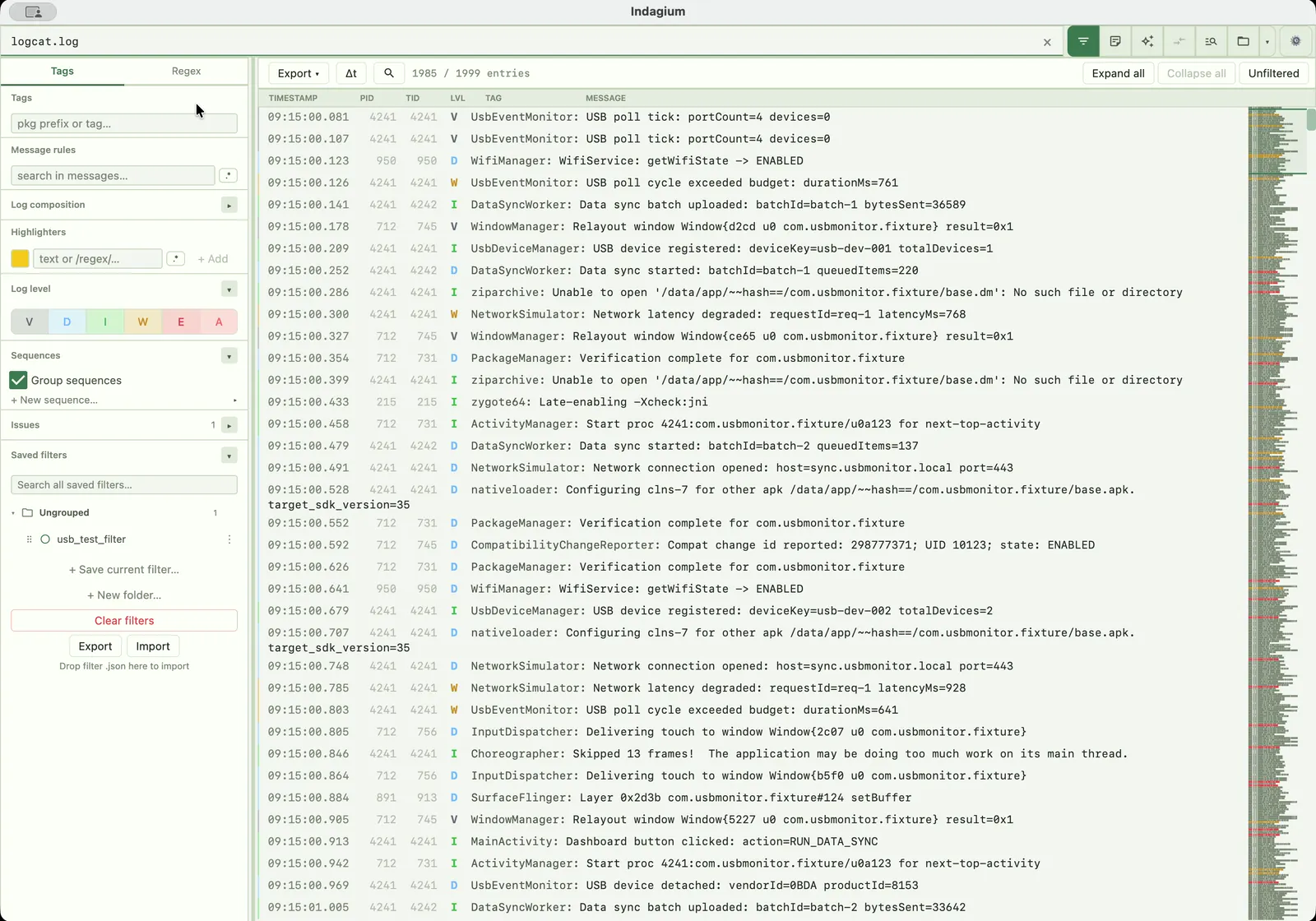
Indagium open on a captured logcat file with level and tag filters applied.
Open the file testers and QA send you — no device, no IDE.

The problem with Studio's Logcat

A live session isn't what you have. You have a file.

Studio's Logcat view streams from adb while a device or emulator stays attached to that project window. Close the app, disconnect the phone, or reopen Studio tomorrow, and that buffer is gone unless someone saved it to a file first.

That's usually the situation you're actually in: a tester attaches a logcat.txt to a bug report, QA emails a captured .log from a device you don't have on hand, or a support ticket arrives with a file pulled off a customer's phone. You don't want to set up a Gradle project, plug in a matching device, or reproduce the session just to read the text — you want to open the file that already exists and look at what happened.

See what a standalone logcat viewer looks like
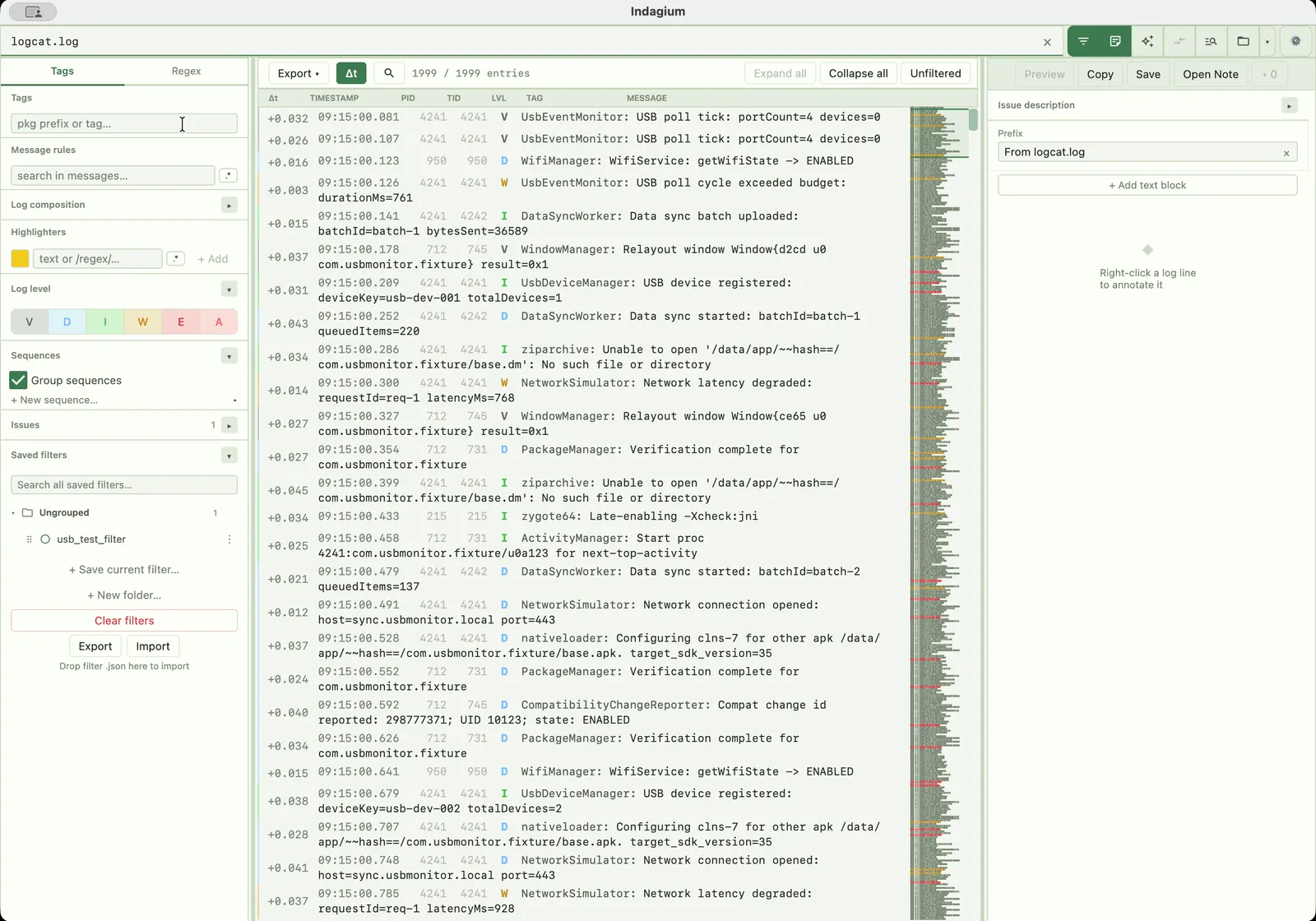
Indagium showing a filtered Android log opened from a file, with no device attached.
Read the file on its own — no adb session required to open it.

From capture to answer

Four steps, no IDE required.

  1. 01

    Install platform-tools (adb)

    You need adb, not the IDE. Download the SDK Platform Tools ZIP from Android's developer site, unzip it anywhere, and add the folder to your PATH (or run adb straight from inside it). Confirm your device is visible with adb devices. Android Studio isn't required for any of this — platform-tools is a separate, much smaller download.

  2. 02

    Capture logcat to a file

    Dump the current buffer to a text file with adb logcat -d -v threadtime > logcat.txt. The -d flag prints what's already buffered and exits, which is what you want for a one-off snapshot; -v threadtime adds PID, TID, and timestamps to every line, a format Indagium's parser reads directly. For continuous capture while you reproduce an issue, drop -d and redirect the live stream instead — adb logcat -v threadtime > logcat.txt — then stop it with Ctrl+C once you're done. Run adb logcat -c first to clear the buffer so the file starts clean at the moment you begin reproducing.

  3. 03

    Open the file in Indagium — no adb GUI needed

    Once you have a .txt or .log file, Indagium opens it directly: drag it onto the window, click Open in the toolbar, run indagium path/to/logcat.txt from the command line, or use "Open with" from your file manager. There's no separate adb logcat GUI to install — Indagium just reads the plain-text file adb produced. If the file is still being written because you left the capture command running, right-click its tab and choose Start Live Watching; Indagium polls the file and appends new lines as they arrive, with your filter already applied. Indagium itself never talks to adb or a device — it only opens the file adb wrote, live or otherwise.

  4. 04

    Filter and investigate

    With the file open, narrow the signal in the left filter panel — level, tag, package, message, PID, or TID, with substring or regular-expression matching — and fold repeating regions into collapsible sequences. The logcat analyzer covers the full filter and fold toolset, and the analysis guide walks through a complete five-step investigation from a raw file to an exported note.

Questions

Frequently asked, plainly answered.

Can I view a logcat.txt file without Android Studio?

Yes. Capture it with adb — part of the small platform-tools download, not the full IDE — then open the resulting .txt or .log file in a standalone viewer such as Indagium. No Gradle project, emulator, or IDE window is needed to read it.

Does Indagium capture logcat from a device itself?

No. Indagium is a desktop app that opens log files; it does not connect to a device or run adb itself. Capture the log with adb logcat first, or point Indagium's live tailing at a file adb is currently writing to.

What is the adb command to save logcat to a file?

adb logcat -d -v threadtime > logcat.txt dumps the current buffer once and exits. Drop the -d flag for a continuous capture you stop yourself, and run adb logcat -c beforehand to clear old lines so the file starts clean.

Is there a GUI for adb logcat, instead of the terminal?

adb itself is command-line only, but once its output is redirected to a file, Indagium is the graphical side of the workflow: open that file to filter, fold, search, and annotate it visually instead of scrolling a terminal.

Can I watch a logcat file update live, without reopening it?

Yes — right-click the open tab and choose Start Live Watching. Indagium polls the file on disk and appends new lines as adb writes them, with your filter still applied. This works for a real file on disk, not one inside a .zip archive or produced by a merge.

Keep going

The file is open. Now find the answer.