Start with the rows in scope
Use selected log rows for a focused interval, or start from the current filtered view to diagram the events you have already narrowed down.
Android log analysis / Sequence diagrams
Create an interaction diagram from selected Android log rows or the current filtered view. Indagium builds a starting point from the evidence, then lets you edit the lifelines, actors, messages, and presentation while keeping the diagram connected to its source log.
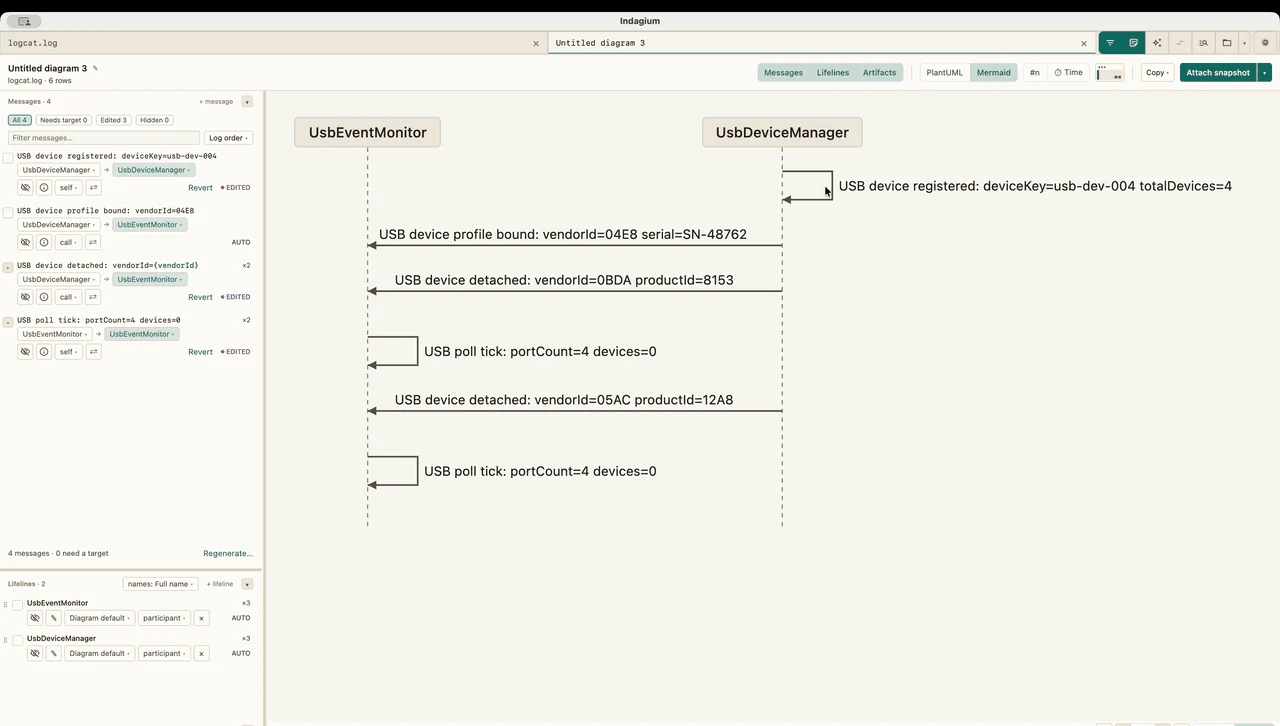
Sequence diagram workspace / 20-second walkthrough
Open a diagram from selected rows, review the messages beside their lifelines, select the linked queue and canvas content, and open the image or source export choices.
THE WORKFLOW
From log events to interactions
The generated messages give you a useful first pass across the chosen log range. They remain editable so the diagram can match the question you are investigating.
Use selected log rows for a focused interval, or start from the current filtered view to diagram the events you have already narrowed down.
Tags in the selected rows are enabled initially. Add tags from elsewhere in the filtered view, search other analyzed tags, rename or merge participants, and add actors.
Set message source, target, label, visibility, repeat handling, and structure. Compatible occurrences can be grouped for editing while their individual log evidence stays available.
Hovering a queue row highlights its arrow, and selecting an arrow reveals the corresponding row. Use the canvas to adjust declared lifeline endpoints or pan and zoom.
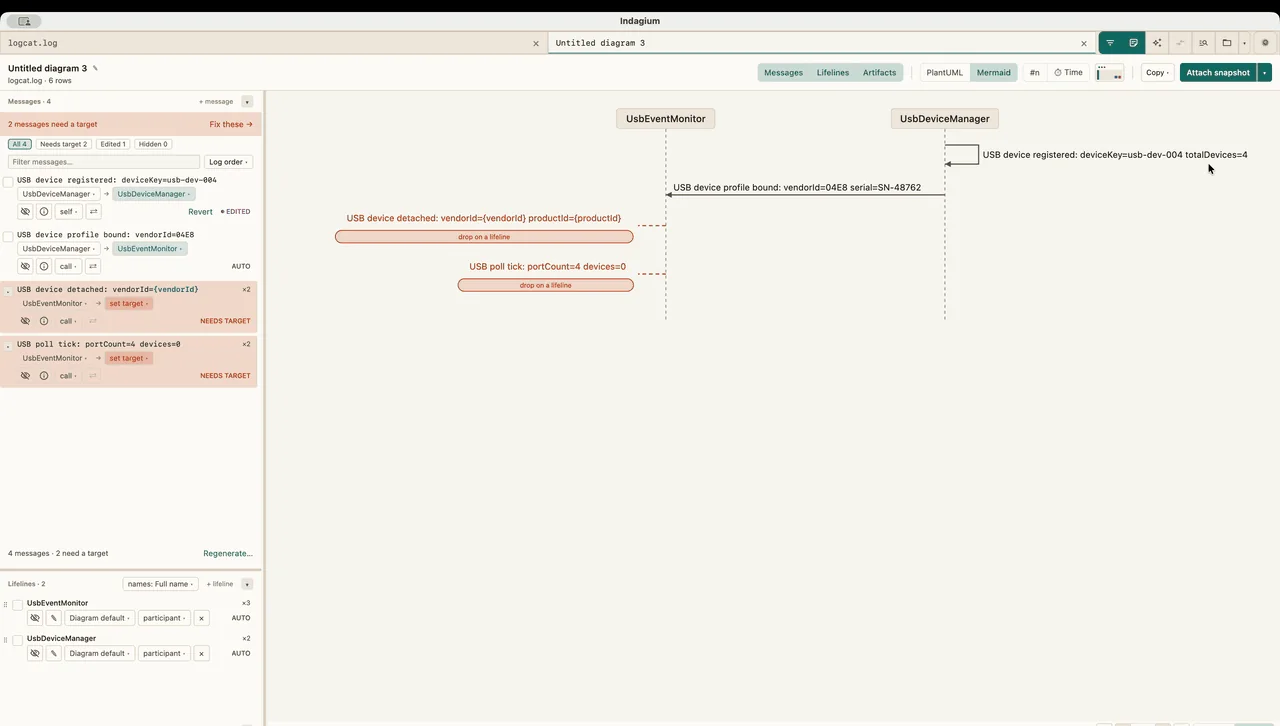
Unsupported targets stay marked as needing a target, with their evidence preserved. Warnings and coverage counts identify hidden, grouped, truncated, or ambiguous events.
Save a diagram as a draft, attach a snapshot to Notes, or choose Mermaid or PlantUML source when a text representation is the useful handoff.
Read the diagram with care
A sequence diagram is a way to inspect event order and supported relationships. It does not turn every nearby log line into proof of a call.
Indagium starts from the selected evidence and uses conservative signals for inferred targets, such as validated adjacent thread handoffs and shared high-confidence request or trace identifiers. A message without a supported destination remains unresolved for you to inspect. Direct source calls are enriched only when the source index can verify them; ambiguous matches are surfaced instead of guessed.
The diagram generator runs locally in the desktop app and does not require an external AI service. You can edit the starting diagram, retain its row evidence, and review the resulting PNG snapshot or text source with your analysis note.
Common questions
Yes. Select a non-empty range of rows to use that inclusive range, or create a diagram from the current filtered view.
Yes. The workspace lets you edit lifelines, actors, message endpoints and labels, grouping, visibility, and presentation. The initial diagram is a starting point for review.
It uses supported evidence such as adjacent thread handoffs and shared high-confidence request or trace identifiers. When a target is not supported, the message is marked as needing a target instead of being assigned a guessed lifeline.
Attach an image snapshot to Notes, or use Mermaid or PlantUML source when a text-based review artifact is more useful. You can also save a workspace and reopen it as a draft.
No. The diagram generator runs locally in Indagium and does not require an external AI service.
Continue the investigation